When a database account needs to be managed by the BH, you need to add the database account information. Below is a detailed instruction on how to add a database account.
2. In the left sidebar, choose Asset Mgmt > Database.
3. On the Database page, select the target asset, then click Account.
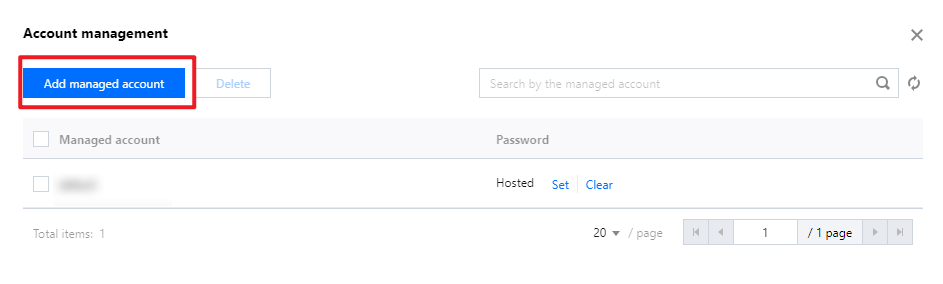
4. In the Account Management window, click Add managed account, and the Add Asset Account window will pop up.
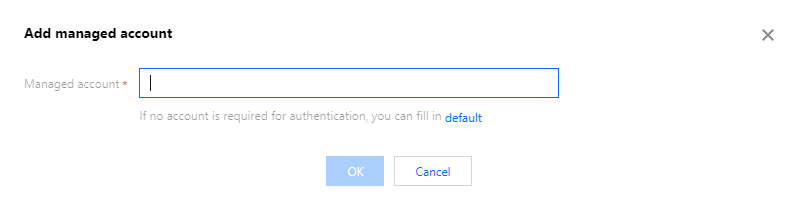
5. In the Add managed account window, configure the account name, then click OK to save.
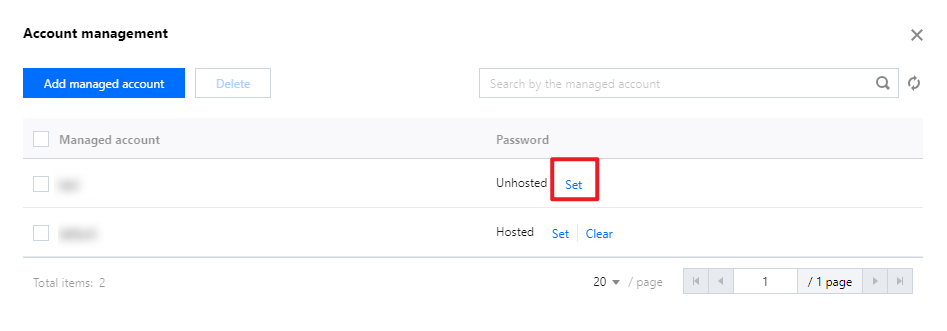
6. In the Account Management window, the newly added account does not have a password set. Click Set for the corresponding account, and the Set password window will pop up.
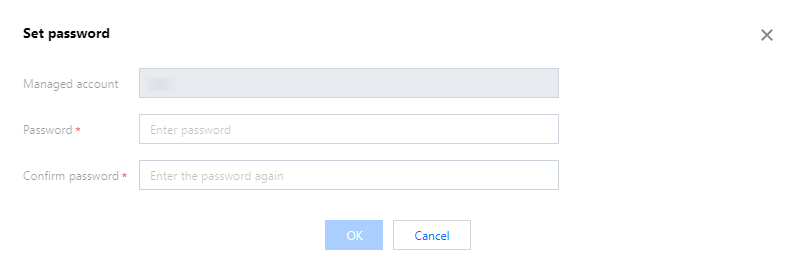
7. In the Set password popup, enter the password, then click OK to save it.