
Password rotation plan

Last updated: 2025-04-18 10:58:48
Overview
Asset account passwords can be automatically modified through Bastion Host.
Note
The password change plan only supports modifying Linux account passwords.
Prerequisites
Directions
1. Log in to the BH console.
2. In the left sidebar, choose Account Mgmt > Password rotation plan.
3. On the password change plan page, click Create password rotation plan to configure task information.
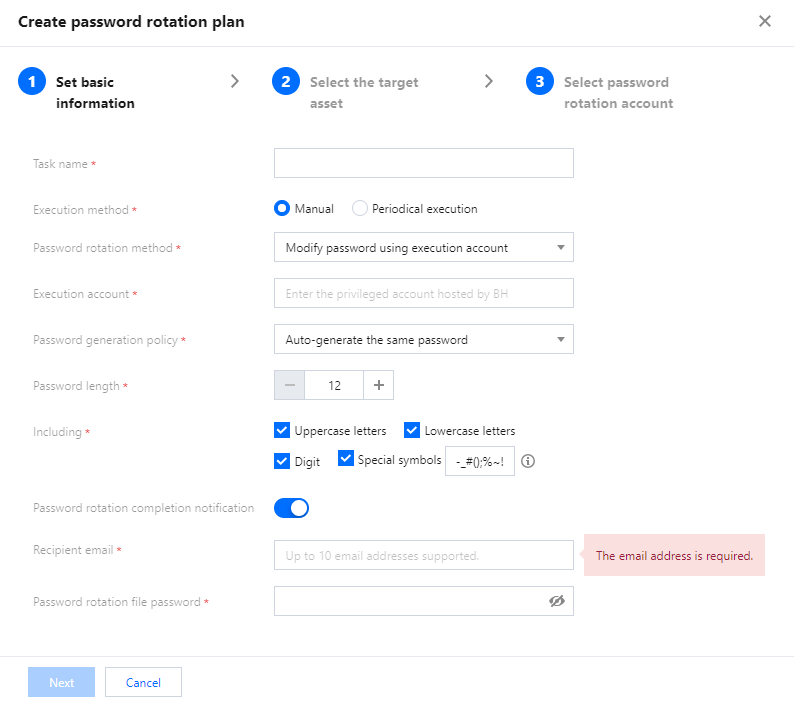
Parameter Name | Parameter Description |
Task name | 1–32 characters. |
Execution method | Options: Manual execution and periodic execution. |
Execution cycle | Set the execution cycle of the task. |
First execution time | Set the first execution time for the task. |
Password change method | Options: Use the execution account to change the password and change your own password. |
Execution account | Set the account name to perform the password change operation. |
Password generation policy | Options: Automatically generate identical passwords. Automatically generate different passwords. Manually specify identical passwords. |
Password length | Set the password length when automatically generating passwords. |
Including | Set the character requirements for automatically generated passwords. |
Password change completion notification | Select whether to enable the password change completion notification feature. If it is enabled, the password change results will be sent to the recipient's email. |
Recipient email | Enter the email address to receive the password change attachment. |
Password rotation file password | Set the password for the password change attachment. |
4. After configuring the task information, click Next to select the assets for password change.
5. Click Next to select the accounts for password change. Click OK to complete the creation of the password change task.
6. Return to the password change plan page, locate the corresponding plan, and click Execute in the action column to start the password change task.

7. After execution, you can switch to Self-Audit and Account Password Change Log to view the password change information.

Was this page helpful?
You can also Contact Sales or Submit a Ticket for help.
Yes
No
Feedback