
Command Line Ops

Last updated: 2025-04-18 11:11:07
Overview
Users directly connect to the BH via the command line to select and access hosts for operations.
Below, macOS Terminal is used as an example to demonstrate how to connect directly to the BH via an SSH client to access hosts. For other clients, see the following method.
Prerequisites
Contact Us to enable the command-line Ops feature.
The administrator has granted Ops personnel access permissions to Linux hosts.
The Ops personnel have completed account activation.
Use the following information to log in to the BH:
IP address: For the public IP address of the BH, contact the administrator to obtain it on the Service Activation page.
Port: 8321.
User: The Ops username maintained by the BH.
Password: The login password set during the activation process of the Ops user.
Directions
1. Open the Terminal tool.
2. Enter the command
ssh -p 8321 Ops user@``BHIP `command to connect to the BH, then enter ①the Ops user password and ②the verification code (either an SMS code or OTP) to complete the login.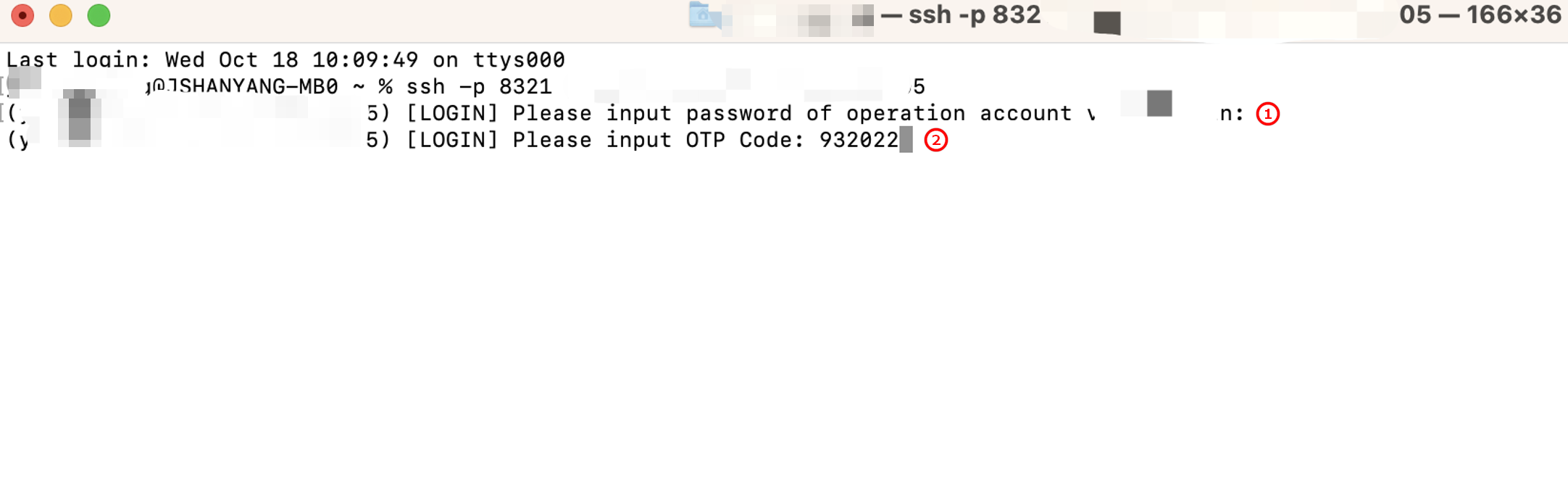
3. After a successful login, the list of authorized assets is displayed. Press
↑/k to move up the list and ↓/j to move down. If there are many assets, they will be displayed across multiple pages. You can navigate downward to locate the desired Ops asset information.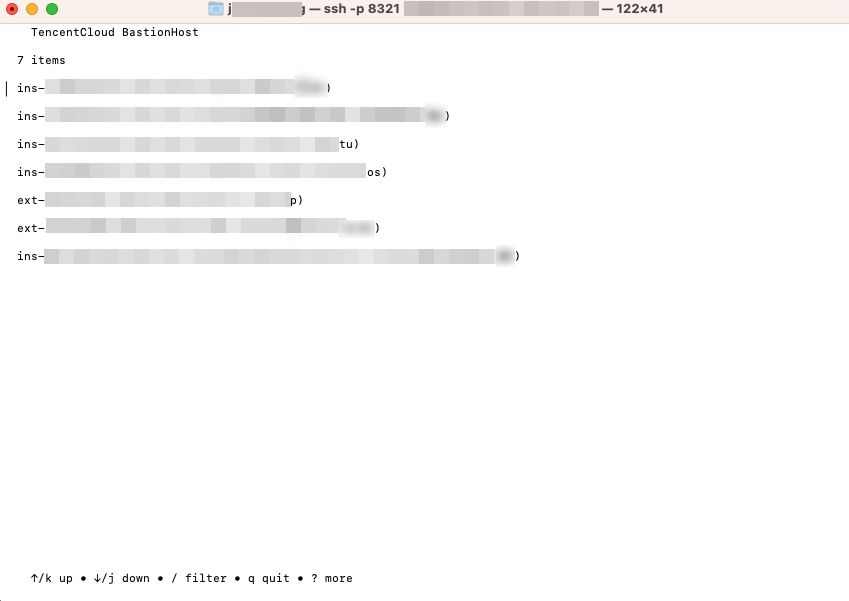
4. Press
/ to enter the asset search mode in the asset list. Set the search criteria in section ① and press enter to execute the search. Press esc to exit the search mode.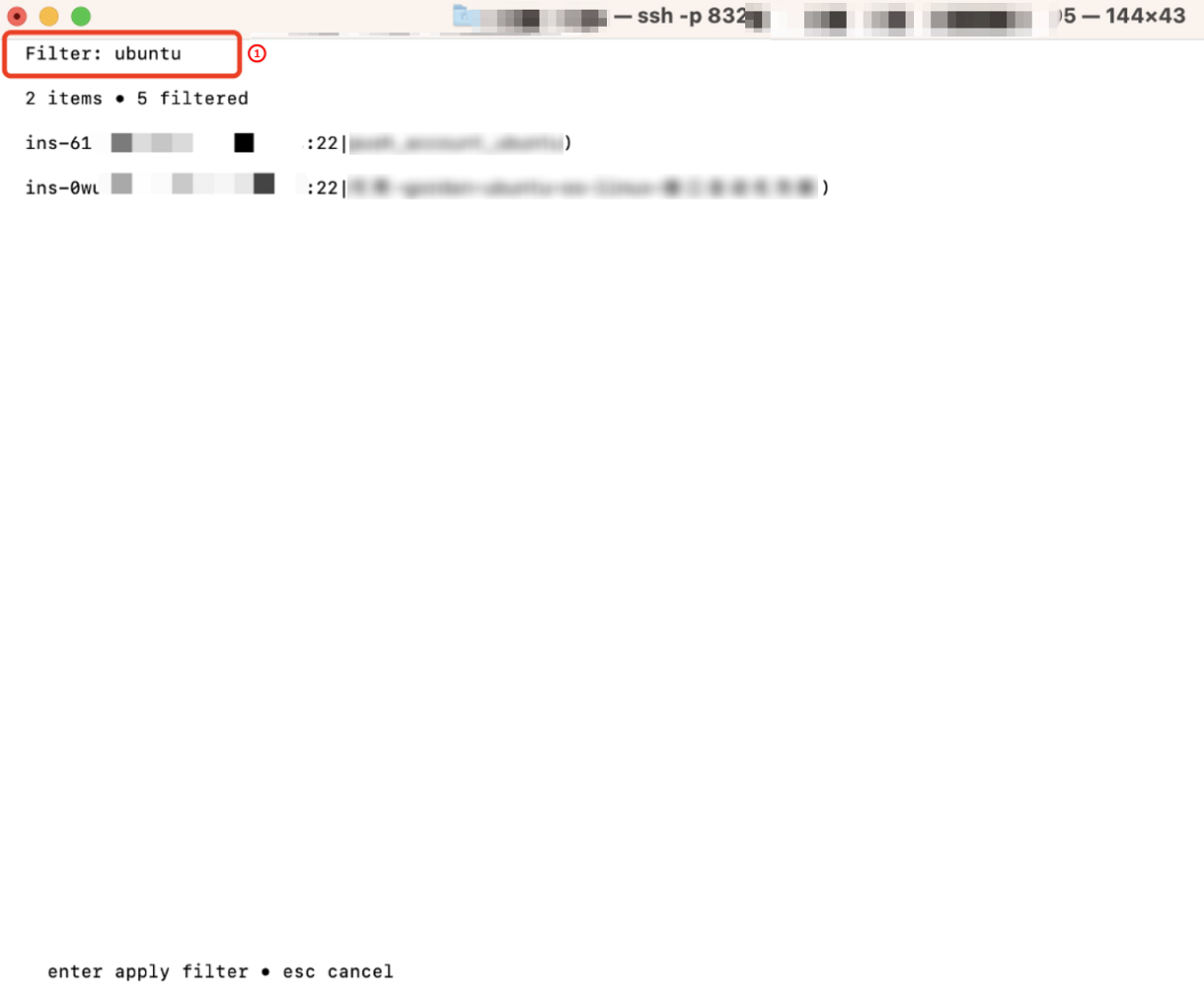
5. After locating the asset, press
enter to proceed to the account selection step. The interface will display all asset accounts authorized to the user. Use the up (↑/k) and down (↓/j) keys to navigate through the accounts. Once the desired account is selected, press enter to log in.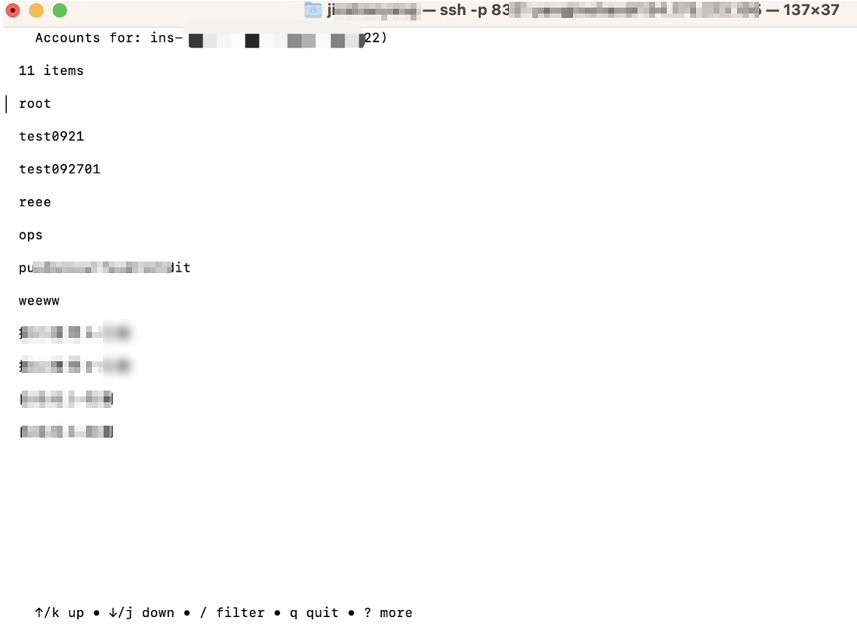
Note
If no accounts have been authorized to the Ops user for the host, and the Allow manual entry of asset account option in the access permissions is enabled, you can manually enter the account to log in.
6. Upon successful login, you can proceed with Ops operations.
7. After completing the Ops operations, exit the host to return to the host list.
Method 1: Enter
exit in the command line. When the prompt appears, press any key + ESC or any key + q to return.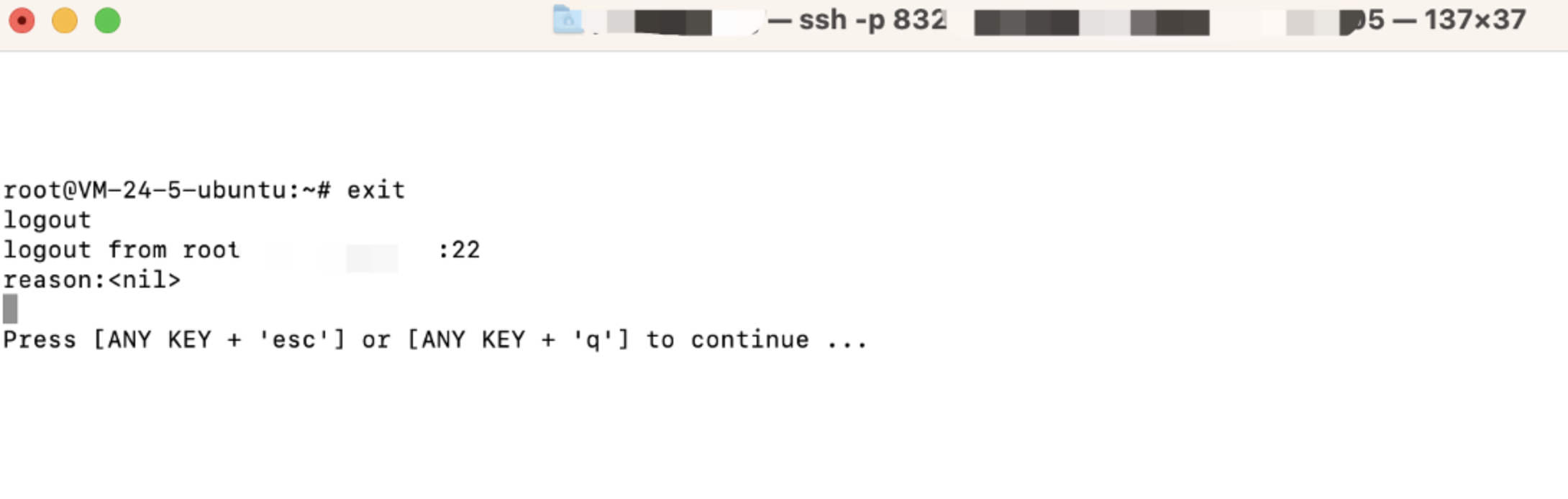
Method 2: Press
ctrl + d. When the prompt appears, press any key + ESC or any key + q to return.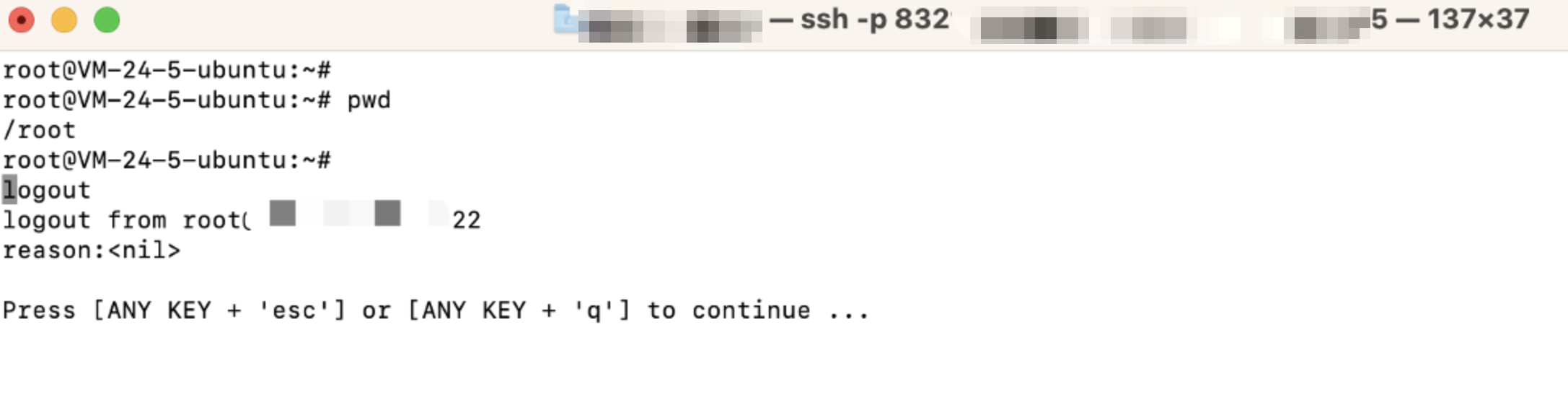
8. In the host list, press
q or ctrl + c to exit the BH.
Was this page helpful?
You can also Contact Sales or Submit a Ticket for help.
Yes
No
Feedback