
SSH or SFTP Direct Connect

Last updated: 2025-04-18 11:11:08
Overview
Users access and manage hosts through Bastion Host. This document provides detailed instructions on accessing a host using the direct SSH/SFTP client connection method. Taking SecureCRT on macOS as an example, it explains how to access a Linux host via an SSH client. Other clients, such as XShell, Xftp, and Transmit, can see the following methods for access.
Prerequisites
The administrator has informed the Ops personnel of the login address.
The administrator has granted host access permissions to the Ops personnel.
The Ops personnel have completed Account Activation.
Use the following information to log in to the specified target host:
IP address: The IP address of the BH.
Port: 8322.
User: The username of the BH, the account for the target host, or the IP address of the target host.
Password: The user password for the BH.
Note
If your host is added to the BH through synchronization, enter the private IP address of the target host.
Directions
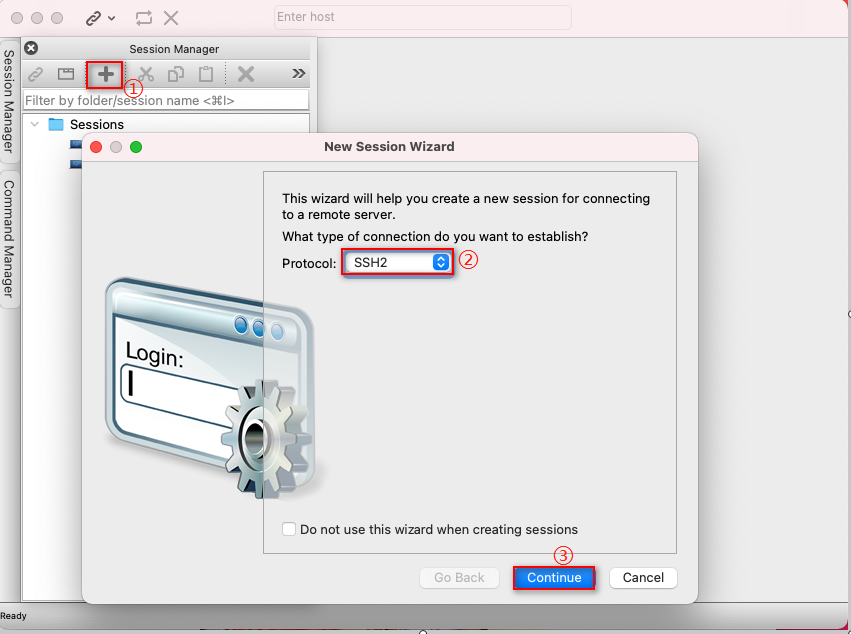
1. Open SecureCRT and click Session Manager on the left side.

2. Click New Session to open the New Session Wizard window. Set Protocol to SSH2 and click Continue.
3. Enter the login information and click Continue.
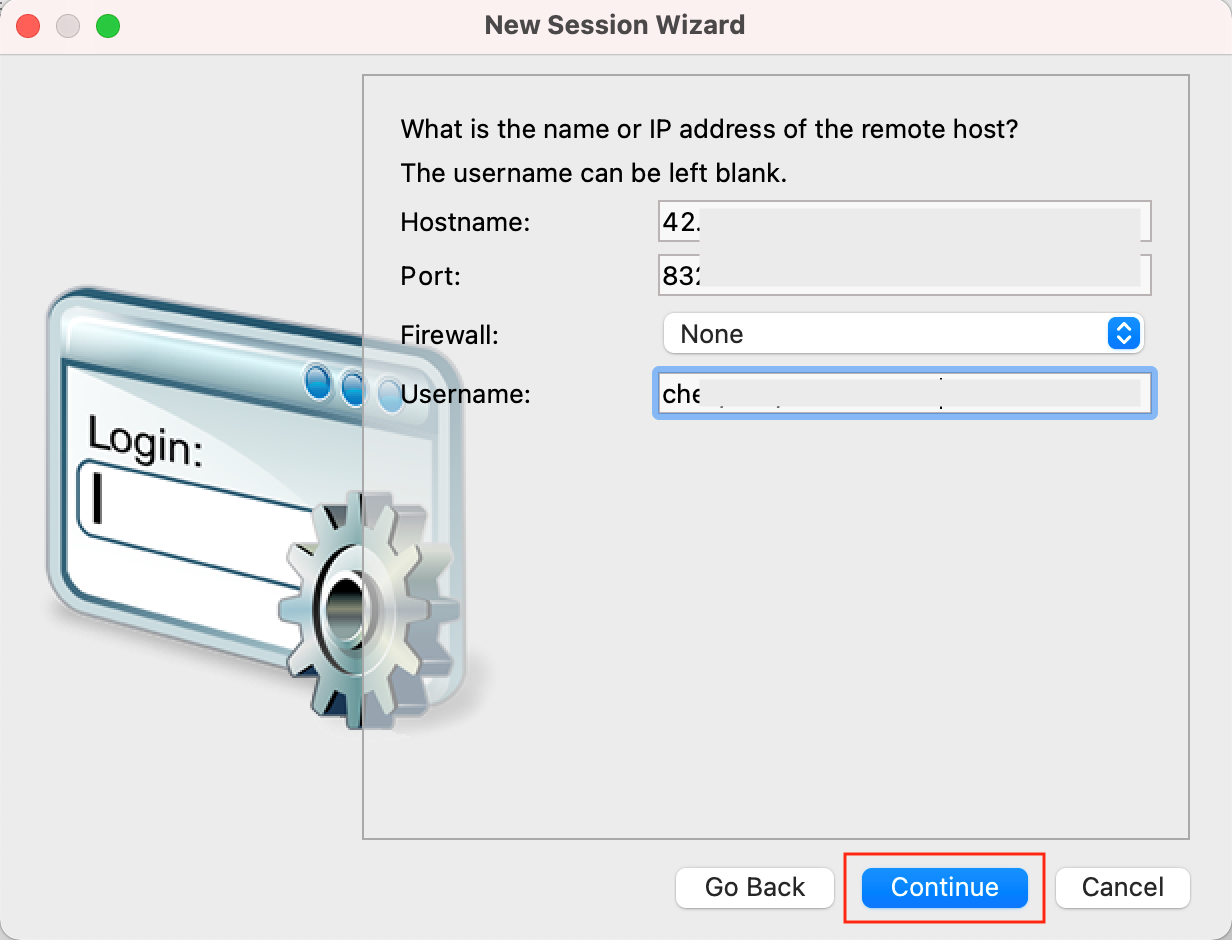
Parameter Name | Parameter description |
Hostname | For the IP address of the BH, contact the administrator to obtain it. |
Port | 8322 |
Firewall | None |
Username | The username of the BH, the account of the target host, or the IP address of the target host. For example: test/root/192.168.10.20. |
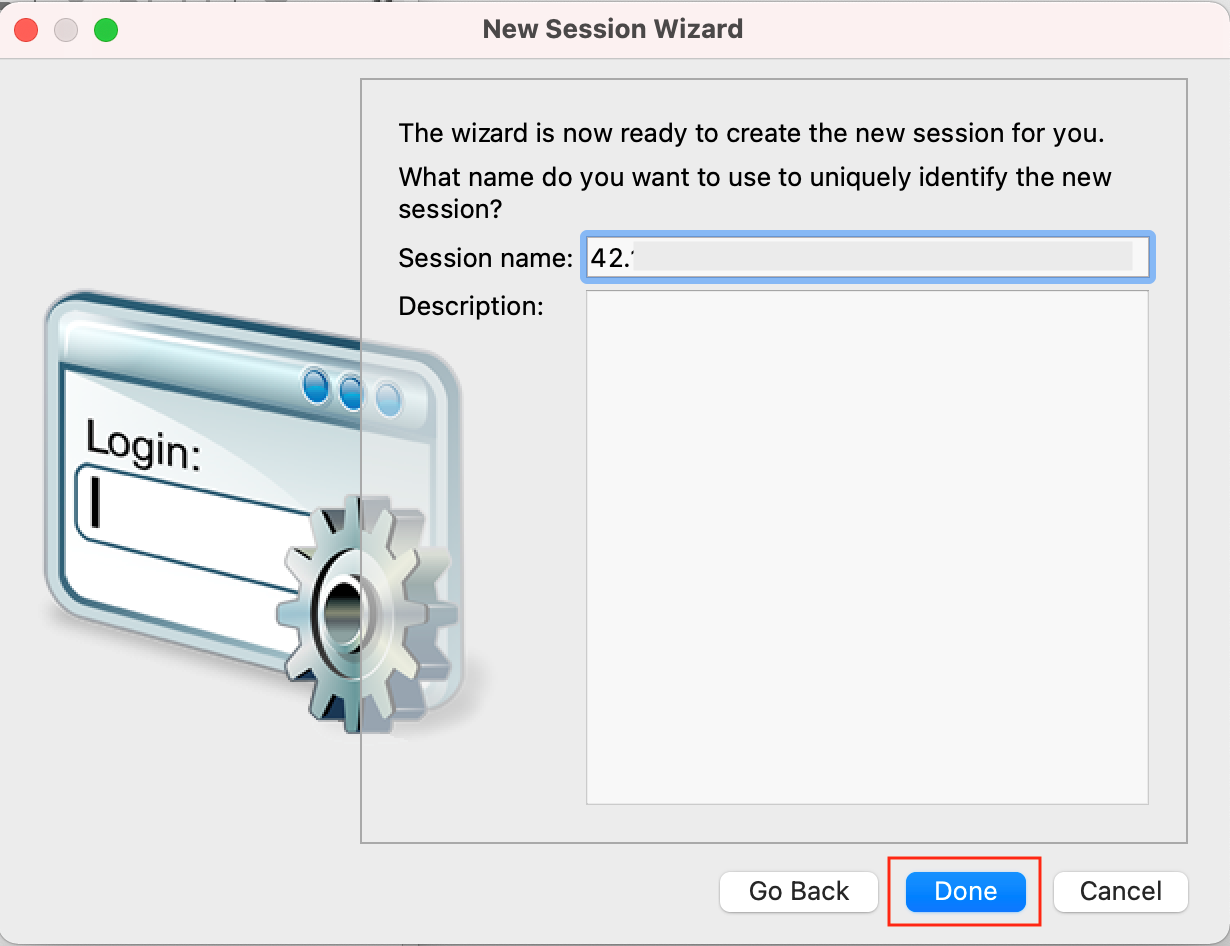
4. Enter a custom Session name and click Done.
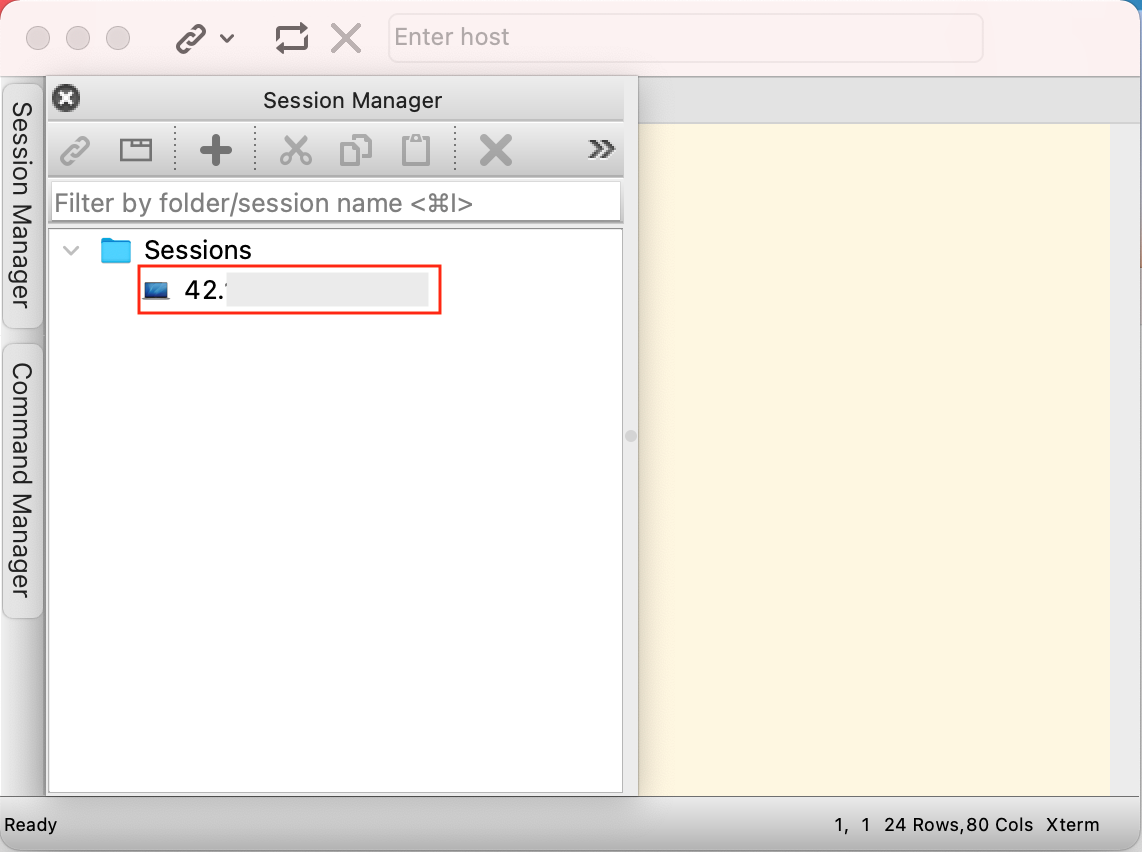
5. Return to the Session Manager and double-click the session to be accessed.
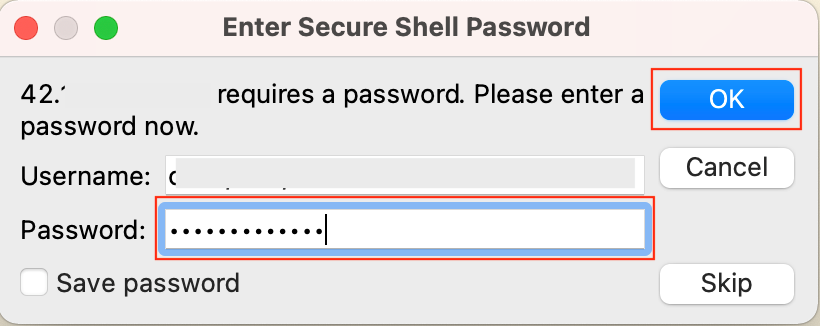
6. In the pop-up window, enter the current password for the BH user and click OK.
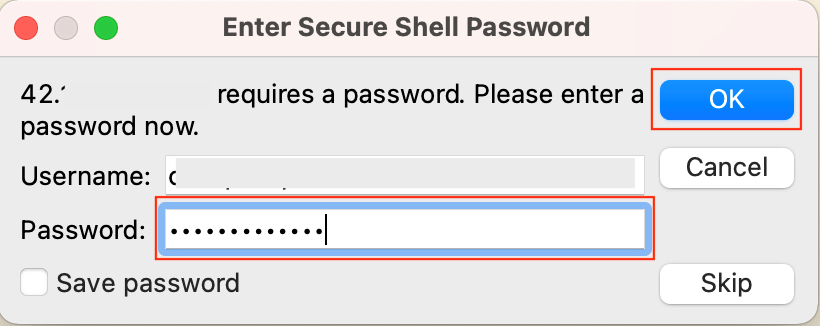
7. In the pop-up window, enter the two-factor authentication code and click OK.
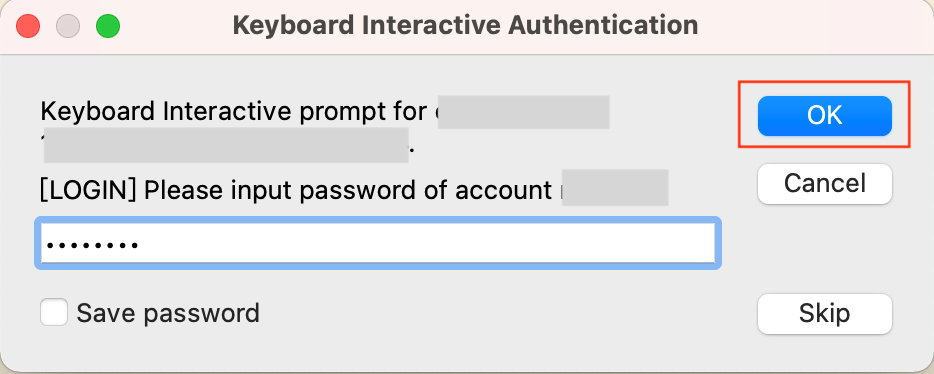
8. If the password for the target host account has not been managed, enter the host account's password in the pop-up window and click OK. If the password has already been managed, skip this step.
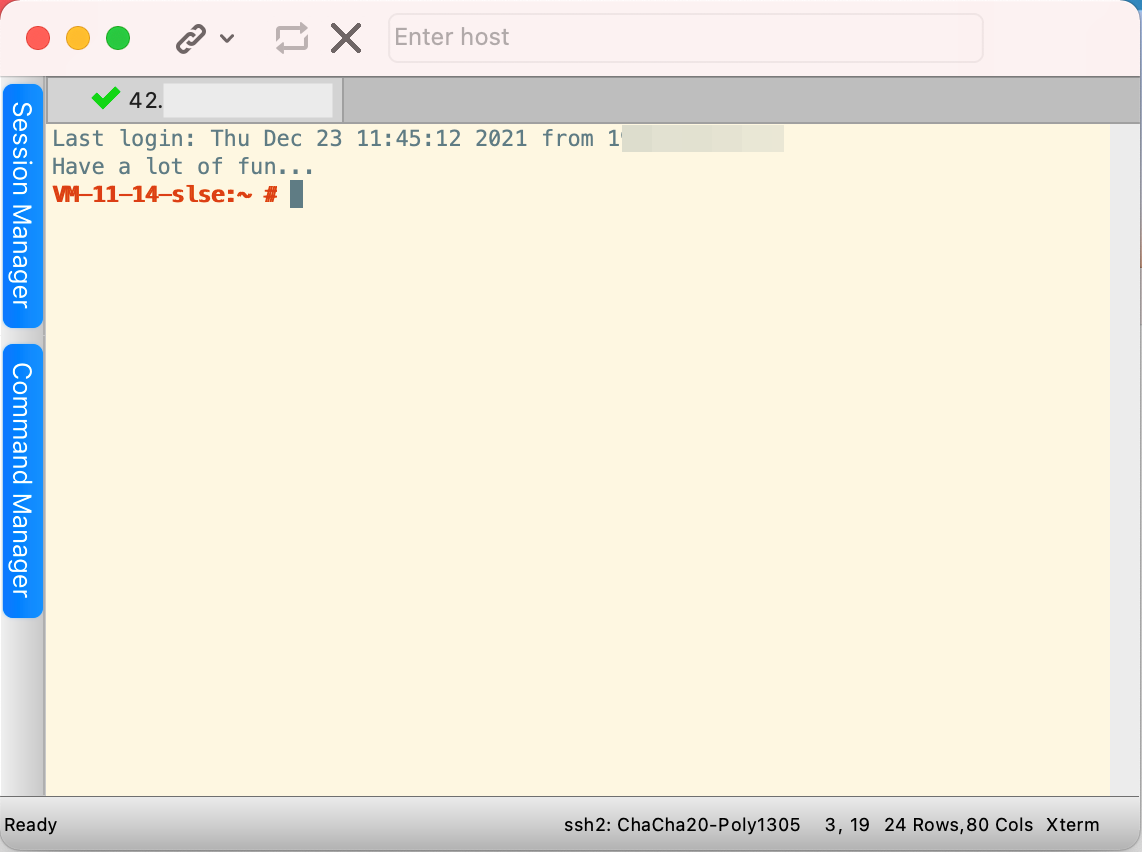
9. Log in to the target host to perform Ops operations.
Note
All operations performed to access hosts through the BH will be recorded.
Was this page helpful?
You can also Contact Sales or Submit a Ticket for help.
Yes
No
Feedback