Before you start using CloudApp, you need to register a Tencent Cloud account. After you have a Tencent Cloud account, you can log in to the Tencent Cloud console, and then purchase and use CloudApp products as well as other Tencent Cloud services. (If you already have a Tencent Cloud account, you can skip this step.)
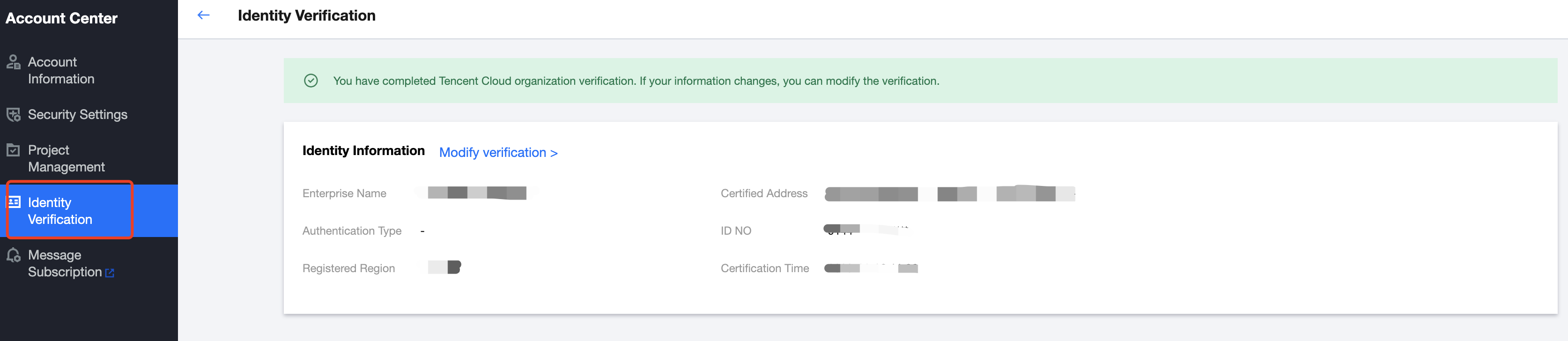
2. Identity verification
After completing the identity verification of your Tencent Cloud account, you can purchase Tencent Cloud products, withdraw cash from your account balance, etc. (If you have already completed the real-name authentication, you can skip this step.)
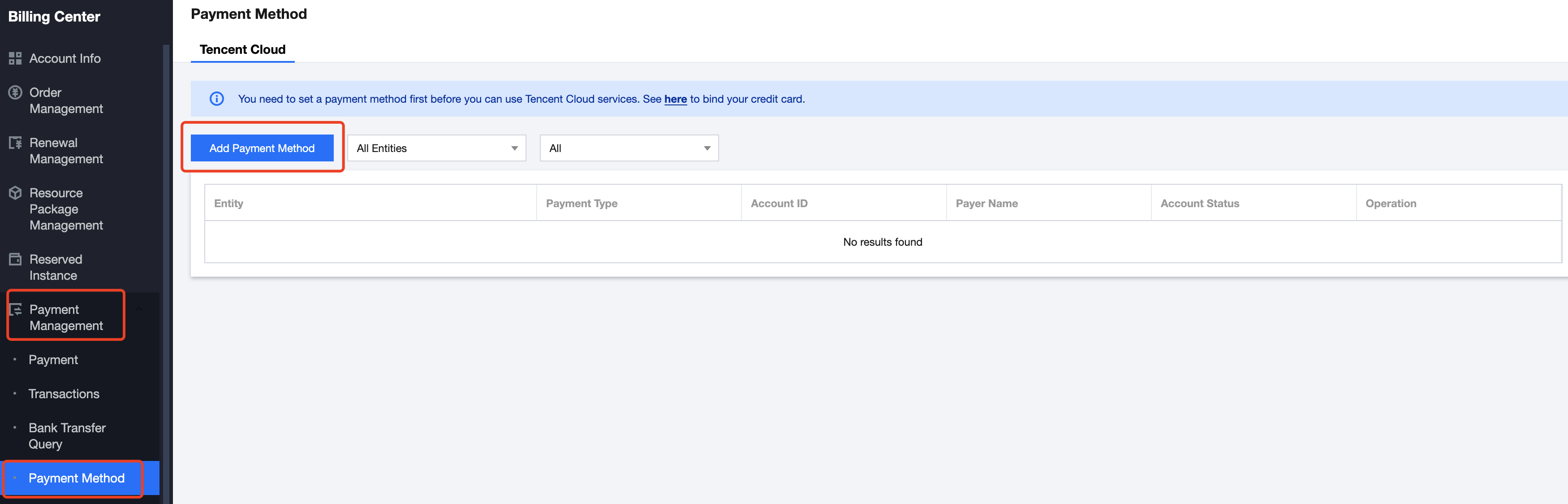
3. Bind a credit card
Before purchasing software/cloud resources, you need to bind a credit card as the default payment method. See the reference guide Add Payment Method.
II. Authorization for CloudApp Installation
If you are the root account, skip this step.
If you are a sub-account, you need to contact the root account to enable CloudApp installation authorization permission for you.
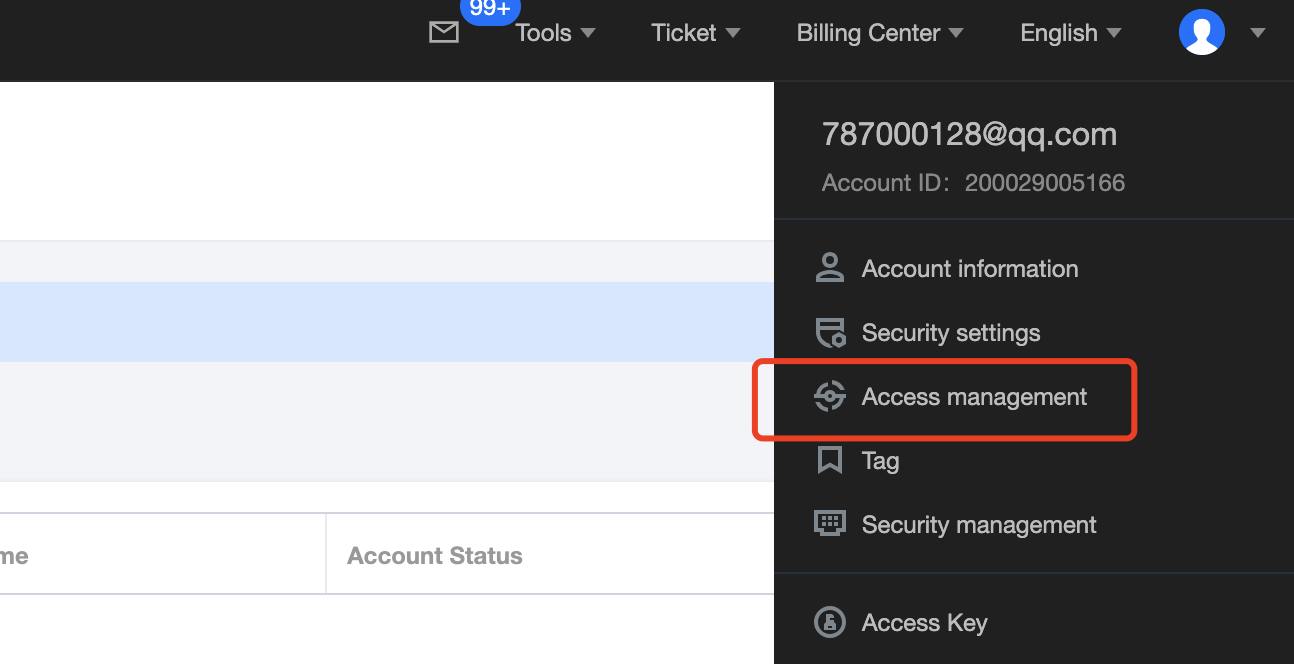
1. Log in to the Tencent Cloud console using the root account, click on the avatar in the upper right corner, and then select CAM.
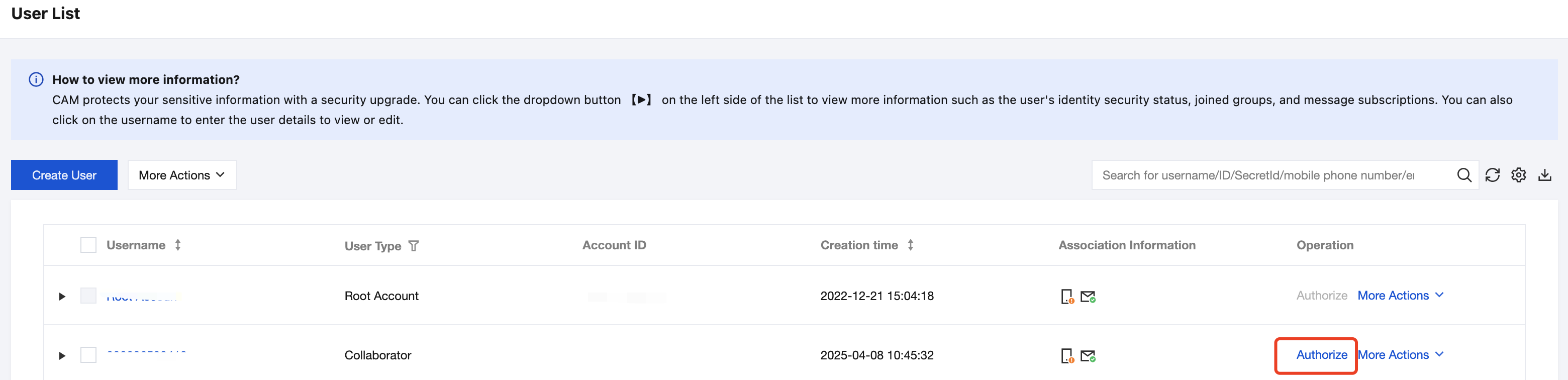
2. Select Users > User List, find in the list the Sub-user requiring installation permission, and click Authorize.
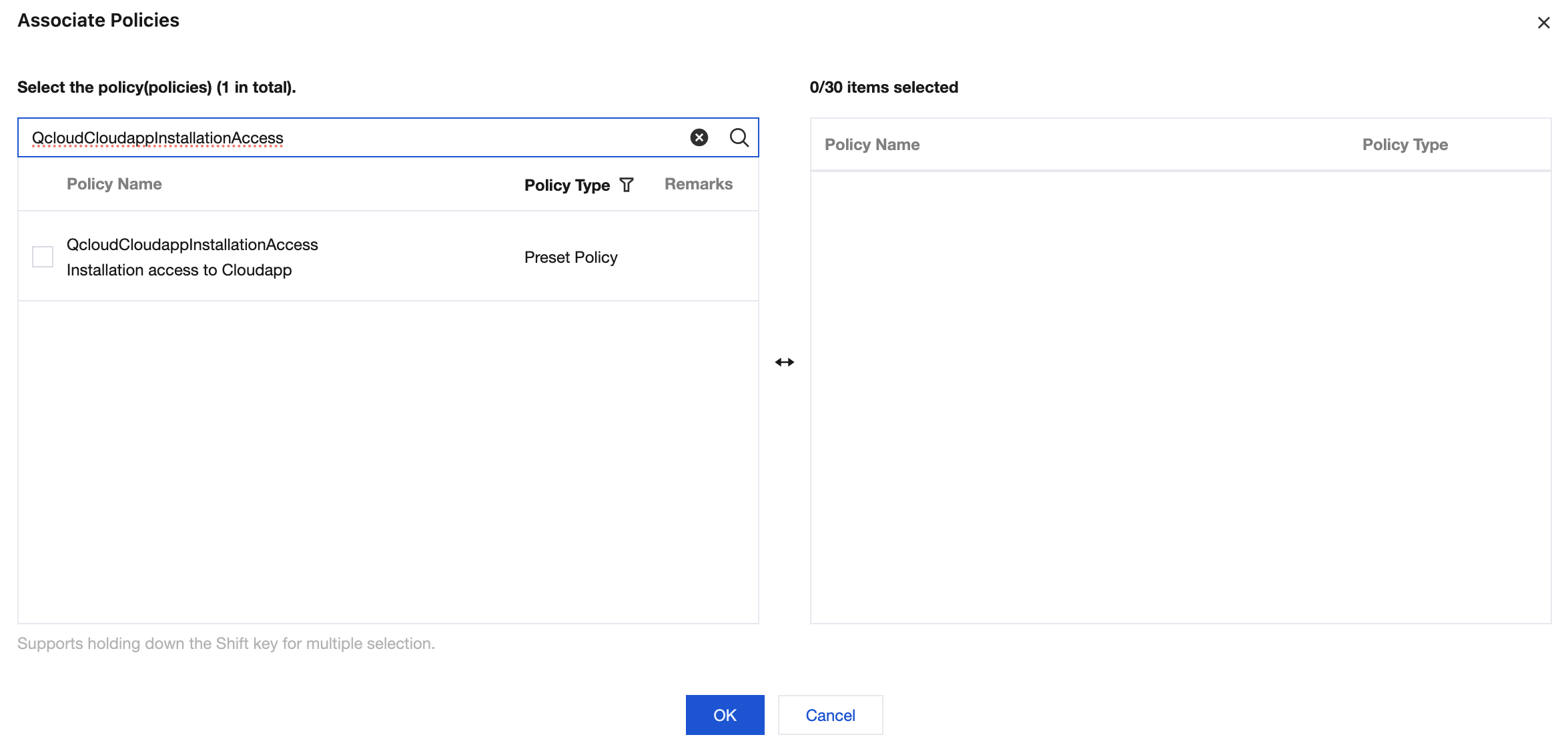
3. Search for "Cloud App" in the associated policy pop-up window or copy the policy name "QcloudCloudappInstallationAccess" to perform search, select the policy and assign it to the Sub-user.
Application Access
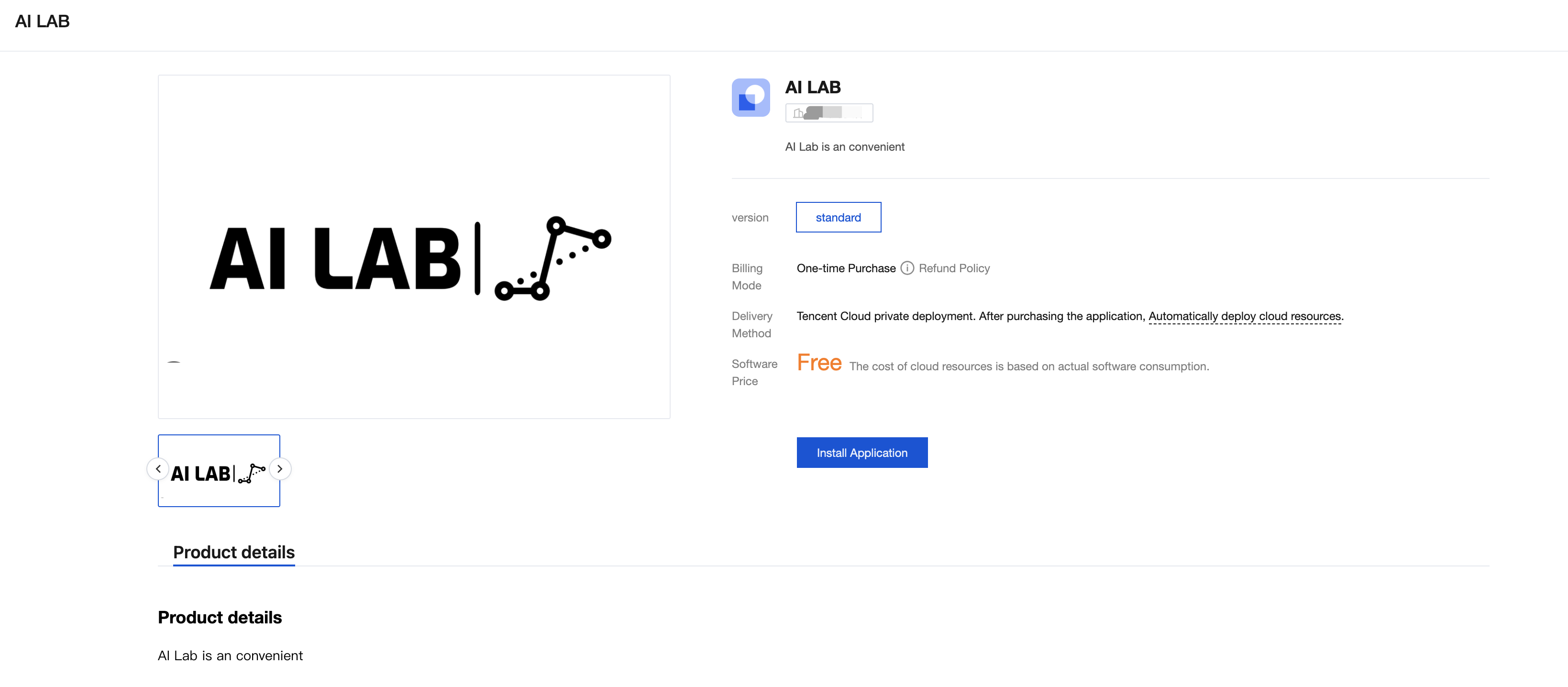
1. Open the product link you are about to visit and complete the log-in to the Tencent Cloud console.
2. View more product information on the product details page.
Optional Software and Cloud Resources
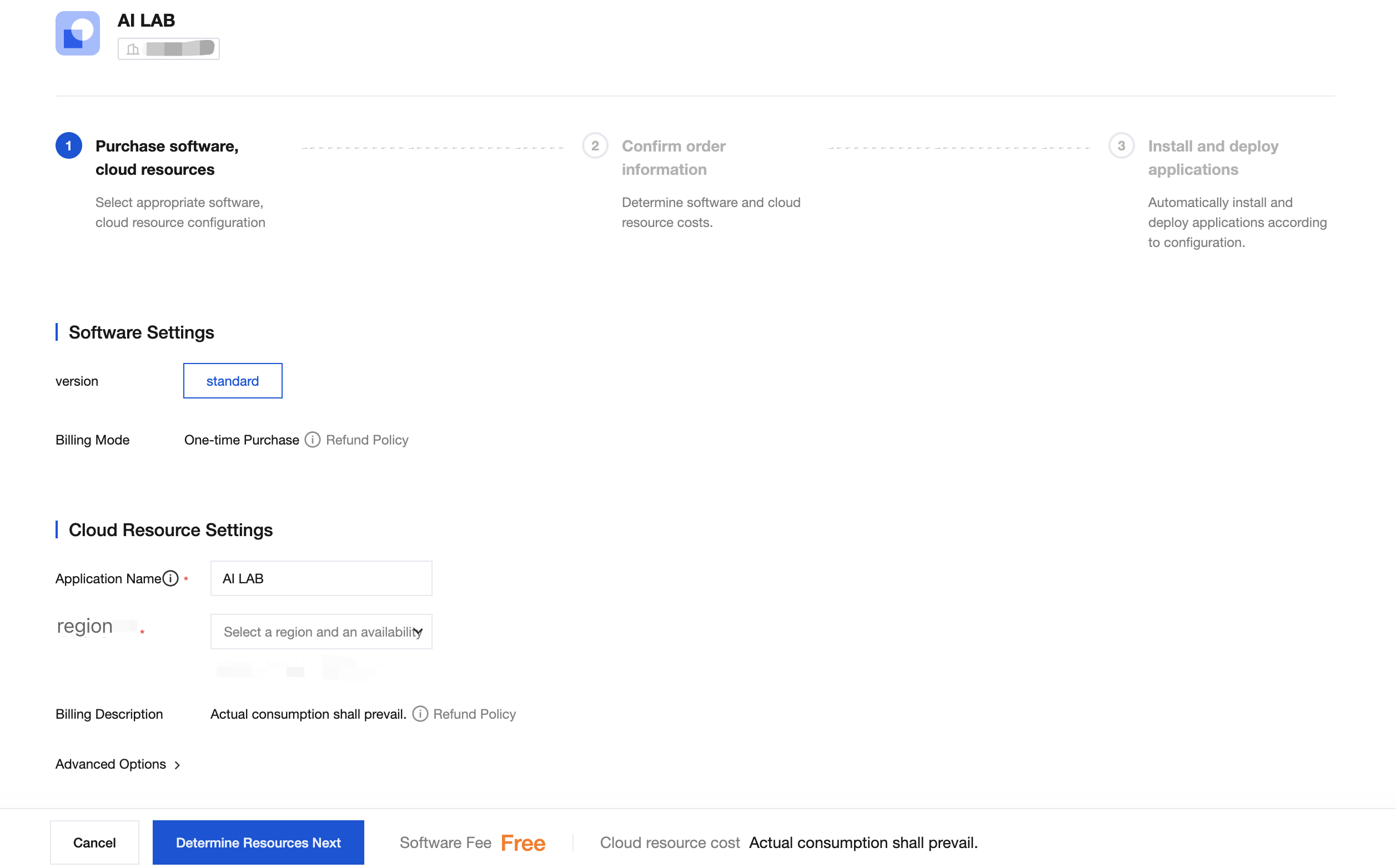
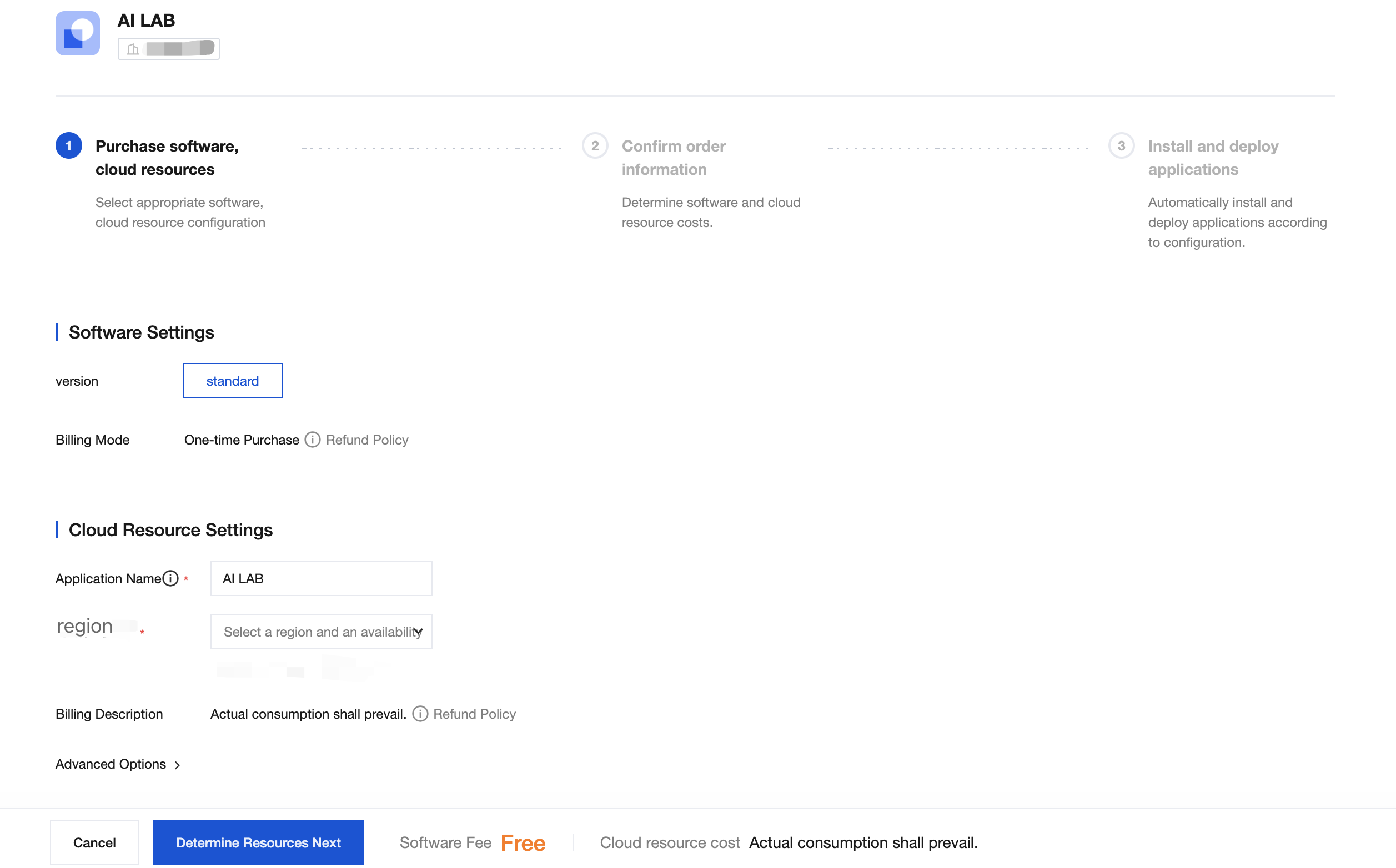
1. After completing the product specification selection, click install application to enter the software and cloud resource selection process.
Software settings: Choose software specifications, billing methods, and purchase duration based on actual needs.
Cloud resource settings: Select region and availability zone, security group, tag, and other cloud resource configurations based on actual needs.
The application includes two parts: software and cloud resources. The software and cloud resources need to be purchased separately. First, purchase and pay for the software, then install the application. The cost of cloud resources will be automatically deducted during installation.
Confirming Software and Cloud Resources Info
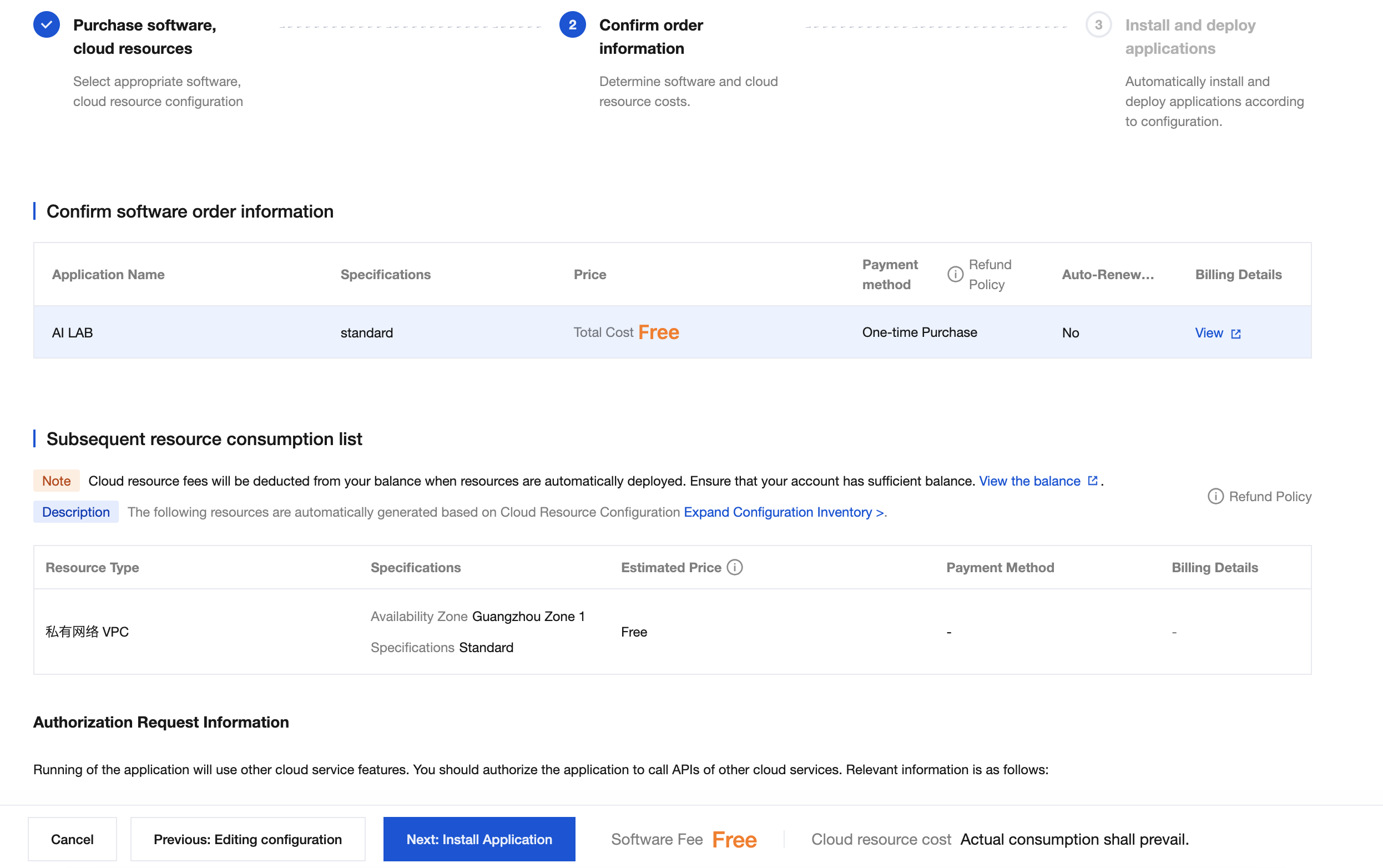
1. On the confirmation page, the total price of the software will be directly displayed, and the cloud resources will be listed with itemized prices. In addition, there will be authorization information, relevant agreements, etc. After completing the selection, click Next: Determine Resources.
Software order information will show the specifications of the software, payment method, and clear total software price. You can click View to learn about related billing details.
The cloud resource list will show the type of your resources, specification, payment method, and estimated price. You can click View to learn about the billing details of the corresponding resource.
2. Carefully read and confirm the information is correct, then click to enter Next: Payment Software.
Payment Software
The international site currently only supports the listing of free software. For free software, there is no need to pay software fees. The system will automatically skip the software payment step and start installation directly.
6. Automatic Application Installation
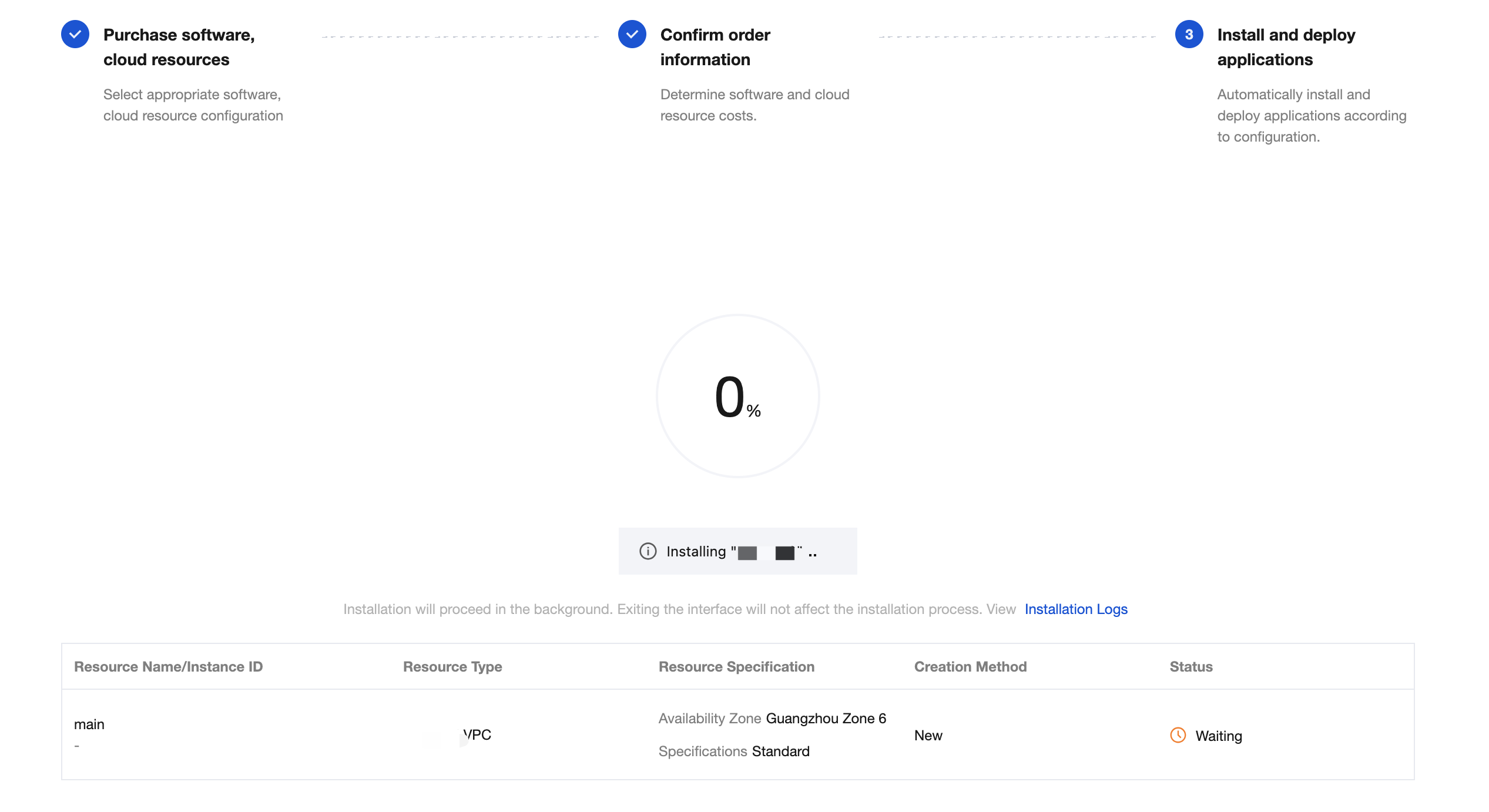
Application installation will be automatically conducted. Requiring no user action, just wait patiently.
During installation, the cloud resources required by the software dependency will be automatically ordered and the fees will be deducted from your balance.
Note:
Please ensure a sufficient Tencent Cloud account balance. Once the installation starts, Tencent Cloud resources will be automatically ordered and the cost of the resources will be deducted from your balance. Insufficient balance may cause installation failure. You can click View Balance.
The installation duration will last for several minutes or longer, depending on the type and quantity of your resources and the application itself.
The installation process runs in the background. You can close the installation interface to perform other operations.
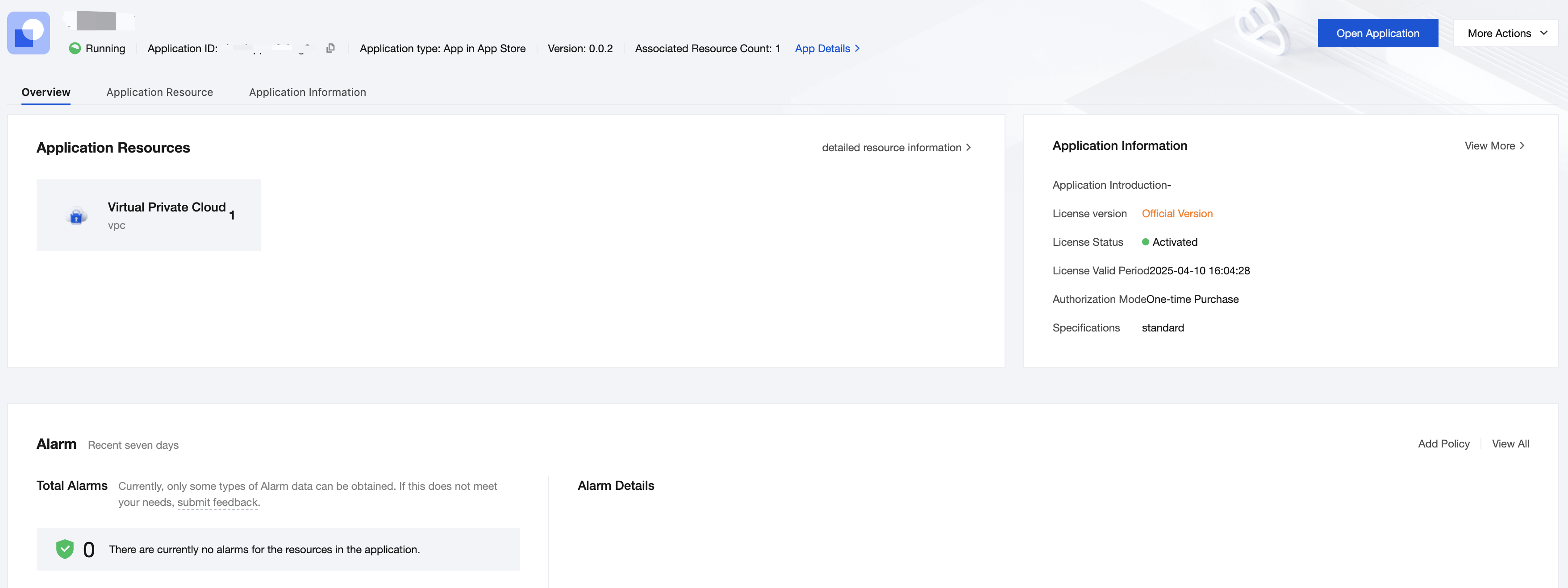
Once installed successfully, the application dashboard will be automatically displayed, and the application purchase will be completed.
Failure Description of Application Installation
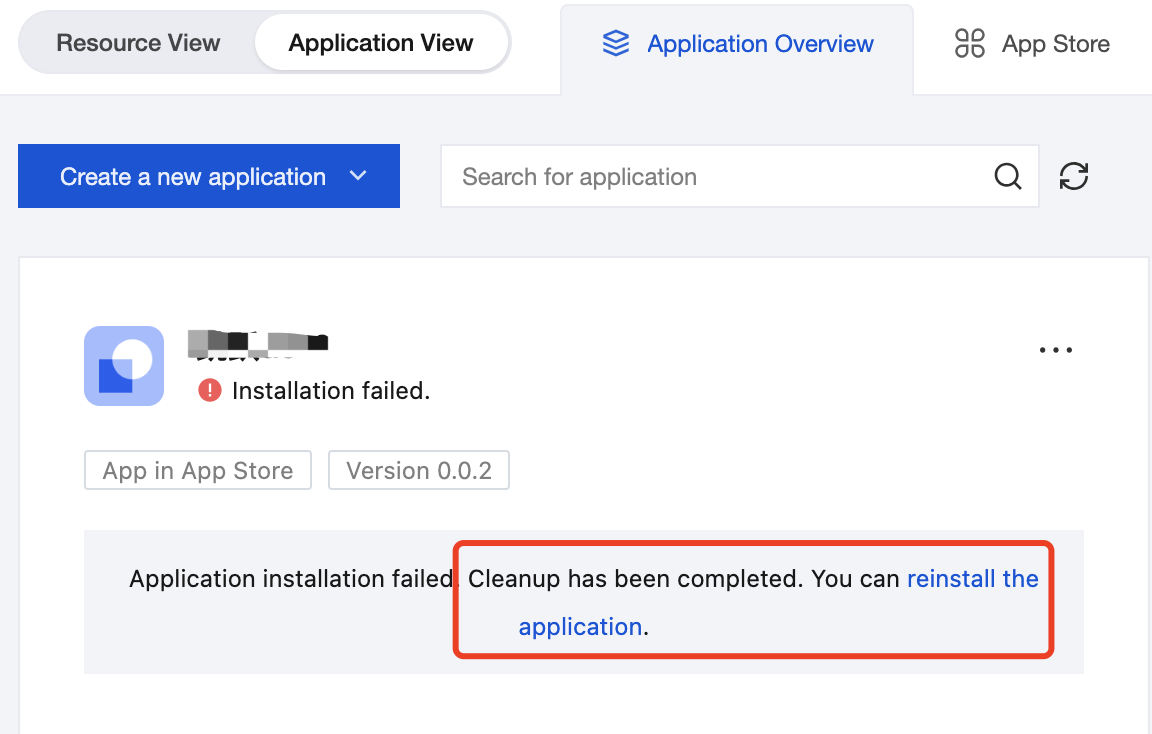
The application may fail to install during the installation process due to insufficient Tencent Cloud account balance, network issue, etc.
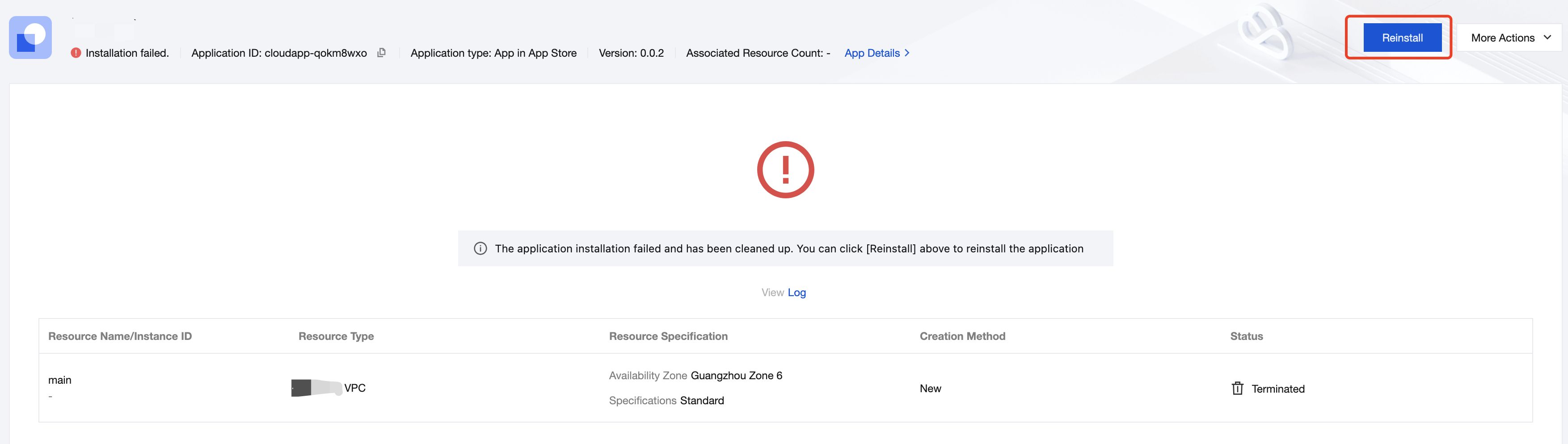
You can retry the installation process through the card prompt in the application overview or the Reinstall button in the upper-right corner of the application details page.
Click Reinstall. You need to reselect the configuration of cloud resources. The subsequent process is the same as the installation process after purchasing software. See the description in Part 4 of this document.