
Terminating Clusters

Last updated: 2025-08-11 11:19:35
Scenarios
When you no longer need the TDMQ RabbitMQ version cluster, you can delete the cluster. To avoid misoperation, the cluster enters a 7-day isolation period after initial termination. During the isolation period, you can manually recover the cluster. After the isolation period, the cluster will be completely terminated, and all data cannot be recovered.
The lifecycle of a TDMQ RabbitMQ version cluster refers to the statuses it goes through from startup to release. With proper management during the period from startup to deletion, applications running on the cluster can provide services efficiently and economically. The cluster has the following statuses:
State | Status Attribute | Status Description |
Creating | Intermediate status | After the cluster is created, it enters the status before running. |
Running | Steady status | The normal running status of the cluster indicates that your node condition, disk utilization, and other indicators are within the normal range. |
Deleting | Intermediate status | Clusters are deleted by the console or through the API. |
Isolated. | Intermediate status | The cluster is in arrears and enters a 7-day quarantined state. Isolated instances cannot produce and consume. Saved and unconsumed messages in the cluster will not be saved. The configuration already saved in the cluster will not be deleted. |
Failed to create | Intermediate status | The cluster purchase is successfully charged via the console or API, but the cluster allocation fails. If this happens, please contact Online Customer Service for assistance. |
Deletion Failed | Steady status | The cluster is manually deleted or not renewed 7 days after expiration, and TDMQ RabbitMQ failed to release resources during execution. |
Operation Steps
Manual Isolation
1. Log in to the TDMQ for RabbitMQ console.
2. Select Cluster Management > Cluster List in the left sidebar. On the cluster management list page, click More > Terminate in the Action column.
3. In the termination dialog box, click Next. After confirming the resource detail, click Confirm Destruction to terminate the clusters.
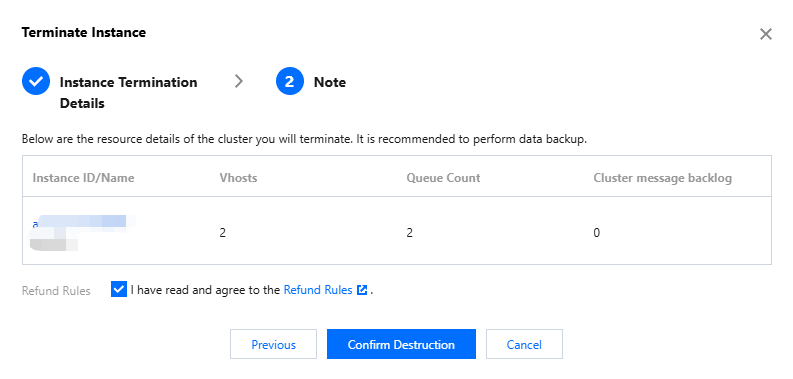
Note:
1. After the cluster is terminated, it remains reserved for 7 days (status: isolated). During the isolation period, you can manually delete the cluster completely or recover it. After 7 days, the cluster will be automatically and permanently deleted. Once completely terminated, all resources and metadata of the cluster will be erased and unrecoverable. Back up data in advance.
2. During the isolation period, message read/write in the cluster will be forbidden, and console operations and TencentCloud API calls will be limited. Saved and unconsumed messages within the cluster will not be saved, so back up data in advance.
3. If you purchased the cluster with a voucher, the discount and promo voucher are non-returnable.
Expiration/Arrears Auto-Isolation
Monthly Subscription (prepaid) instances can work normally for 24 hours after expiration/arrears. After 24 hours, the isolation period starts and lasts for 7 days.
Pay-as-you-go (postpaid) instances can work normally for 24 hours after expiration/arrears. After 24 hours, the isolation period starts and lasts for 7 days.
During the isolation period, you can manually terminate the cluster or manually renew it to recover the cluster. When finished, the cluster will be automatically terminated. After complete termination, all resources and metadata of the cluster will be erased and unrecoverable. Back up data in advance.
During the isolation period, message read/write in the cluster will be forbidden, and console operations and TencentCloud API calls will be limited. Saved and unconsumed messages within the cluster will not be saved, so back up data in advance.
Manually Terminate a Cluster
Clusters in the isolation period can be manually deleted completely. All data will be erased and unrecoverable after deletion. Back up data in advance.
1. Log in to the RabbitMQ Console.
2. On the instance list page, select More > Terminate in the operation column.
3. In the pop-up window for confirming termination, click Submit to completely terminate the cluster.
Was this page helpful?
You can also Contact Sales or Submit a Ticket for help.
Yes
No
Feedback